Use two NFC tags to make late-night scrolling take real effort. For the sleep research and the habits that come first, read How to Stop Scrolling in Bed.
You’ll need: a phone with NFC, and two NFC stickers. The free plan includes one Switch, with up to 20 controls.
Start with a schedule
No tags? This works on its own:
- Create a rule and add your late-night apps to the Watchlist.
- Under Timing, choose Weekly Schedule and set your wind-down time, such as 10:30 pm to 7 am.
- Under Actions, choose Tint to cover feeds with a translucent colored overlay while keeping them usable, or Block for a clean stop. Blocks can be fully strict, or allow a few optional Daily Pardons.
Add the NFC Bedtime Switch
A Switch is an on/off setting your rules can follow. You flip it by tapping an NFC sticker or scanning a QR code.
- Create a Switch named “Bedtime”.
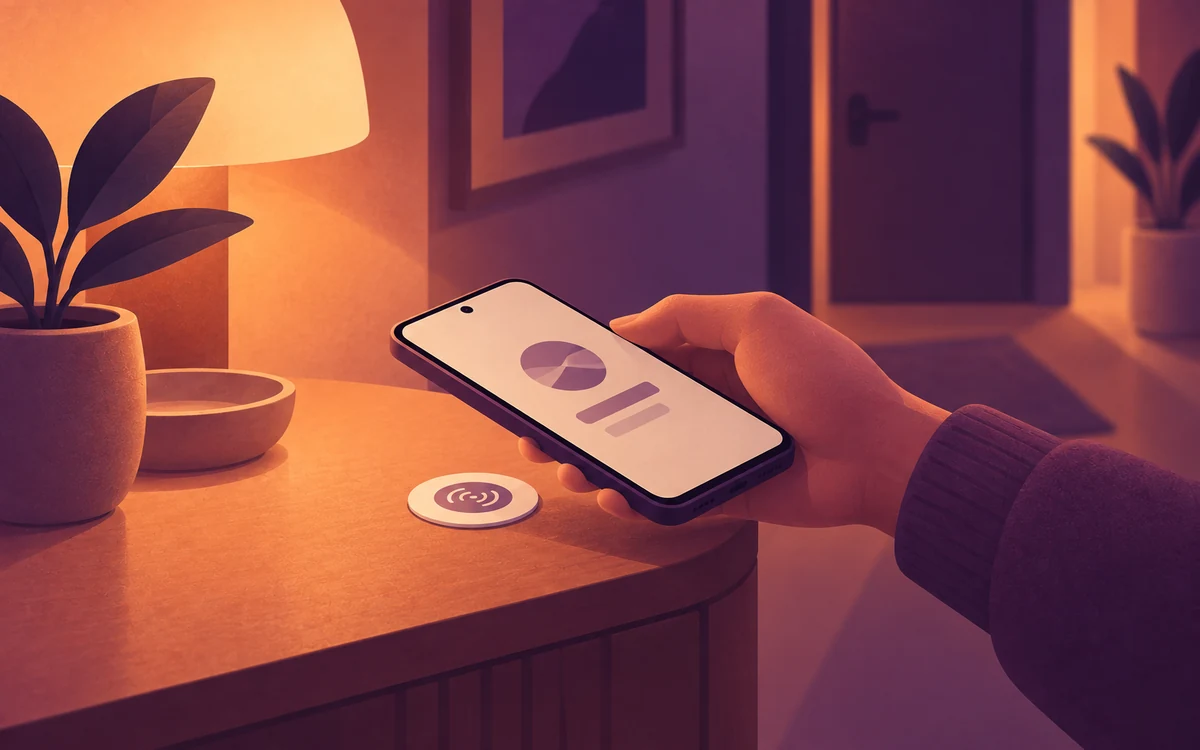
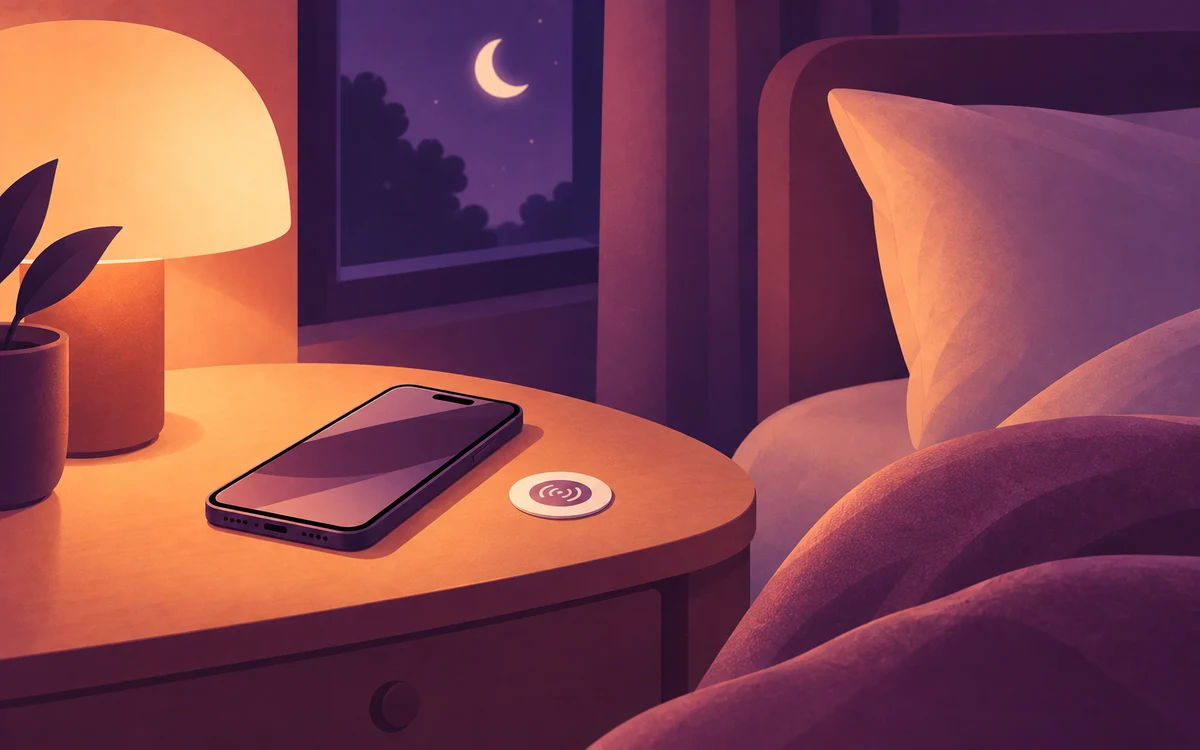
- Add an NFC Tag control set to On. Name it “Nightstand” and stick the tag there.
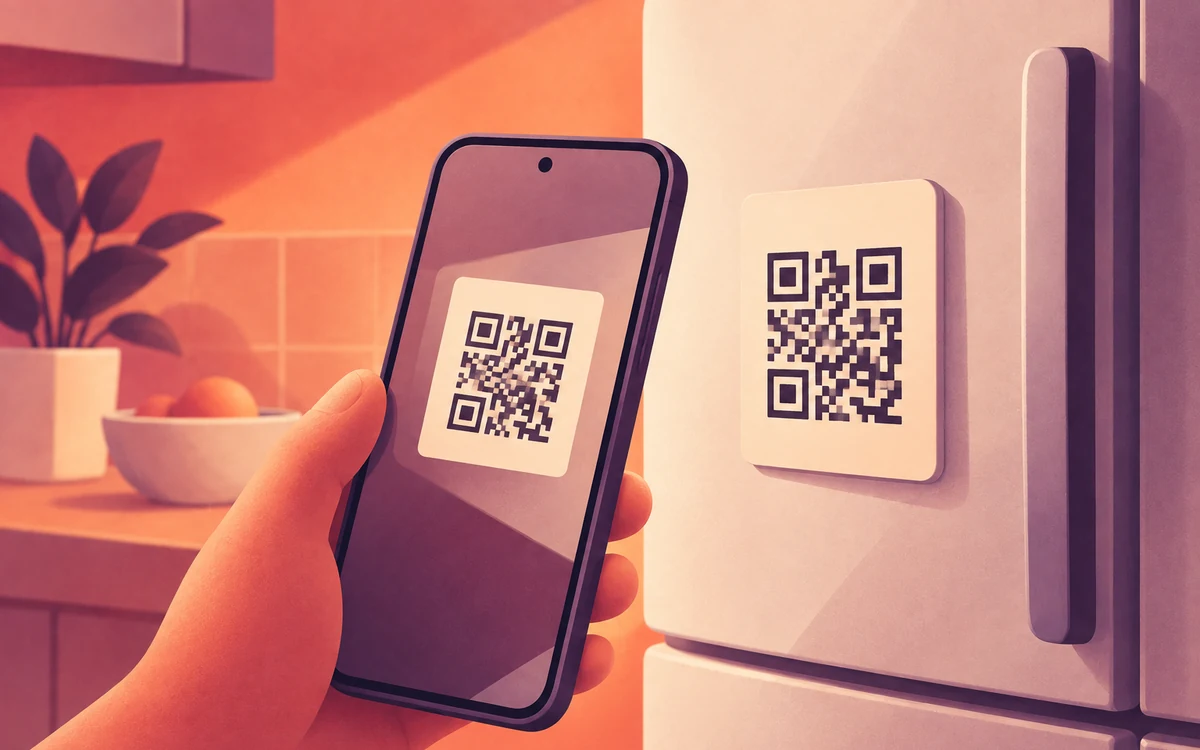
- Add a second NFC Tag control set to Off. Name it “Kitchen” and stick it on the fridge or the kitchen bench.
- In your bedtime rule, set Timing to Always. Under Triggers, choose Switch (NFC/QR) and set it to run while the Switch is on.
- At night, tap the nightstand tag as you get into bed. To turn the rule off, you have to get up and walk to the kitchen.
Make it harder to undo
The kitchen tag only helps if you can’t just switch the rule off in Screentide. Add a Cooldown or Restart device challenge in Enforcement Protection, so a midnight edit takes as much effort as the walk. See Make Your Screen Time Limits Harder to Turn Off.
Other ways to start it
- No NFC: use QR Code controls instead. Print the Off code and stick it in the kitchen. See Turn a Printed QR Code Into a Physical App Blocker.
- No tags or codes at all: a Charging trigger runs the rule while your phone is on the charger, or a Wi-Fi trigger while you’re on your home network.