You can make a physical app blocker with a printed QR code. You’ll need an Android phone with Screentide installed and access to a printer. For why physical blockers work and how the costs compare with devices like Brick, read Physical App Blockers: Do You Need to Buy One?.
The free plan includes one Switch, with up to 20 controls.
Set up a start code and a stop code
A Switch is an on/off setting your rules can follow. You flip it by scanning a QR code or tapping an NFC sticker, called controls.
- Create a Switch named “Focus”.
- Under Switch Controls, add a QR Code control set to On. Name it “Start”, then save or share the image.
- Add a second QR Code control set to Off. Name it “Stop”, and save or share it too.
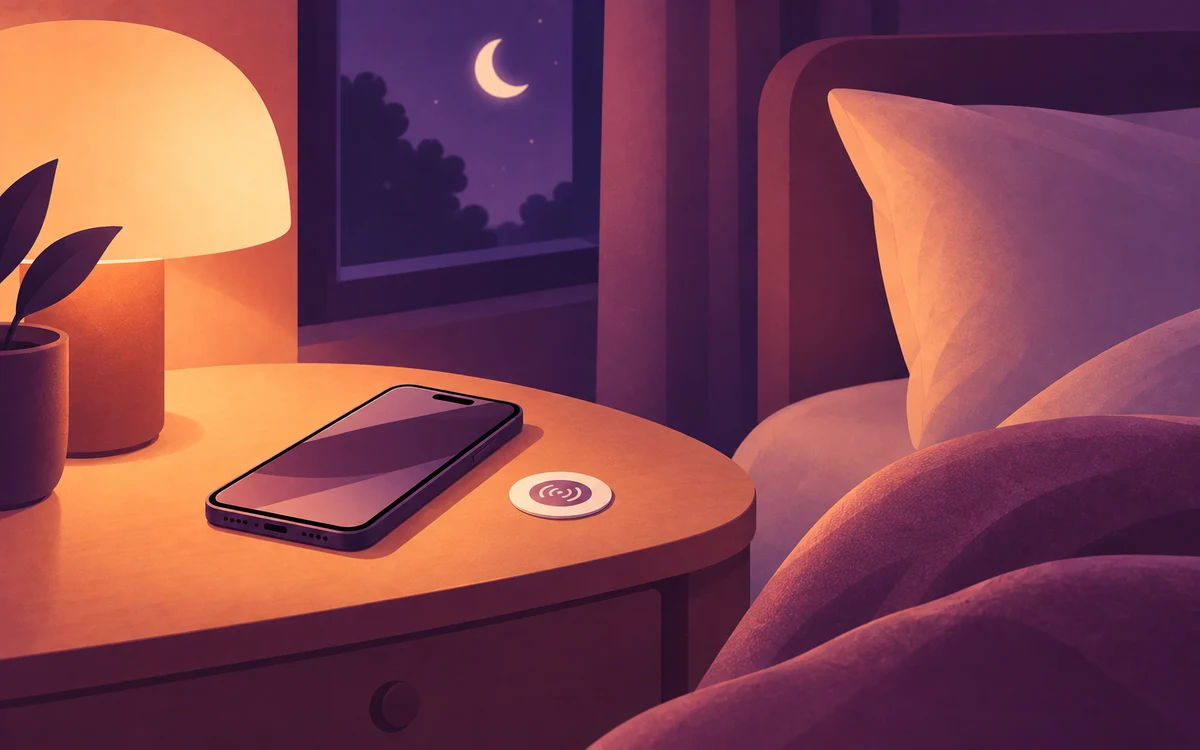
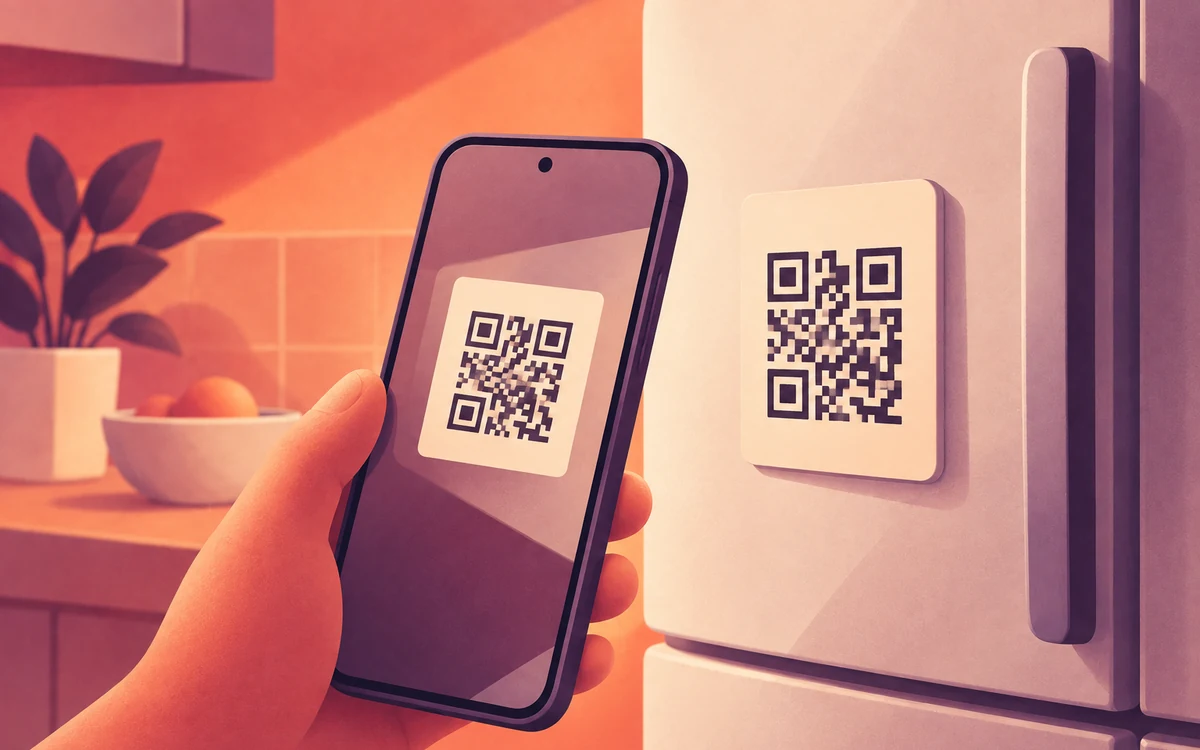
- Print both. Keep “Start” by your desk or bed, and stick “Stop” somewhere you have to walk to, like the fridge.
- Delete the saved images and any shared or backed-up copies. Anyone with a copy of a code can use it, so keep the Stop code somewhere only you or your trusted partner can reach.
- Create a rule and add your distracting apps to the Watchlist. Set Timing to Always. Under Triggers, choose Switch (NFC/QR) and set it to run while the Switch is on.
- Under Actions, choose Block. Blocks are strict by default, or you can allow a few optional Daily Pardons.
Scan Start with your camera or QR scanner to turn the Switch on and begin blocking. To stop, scan Stop at the fridge. The codes are reusable; they do not expire after a scan.
Make it harder to undo
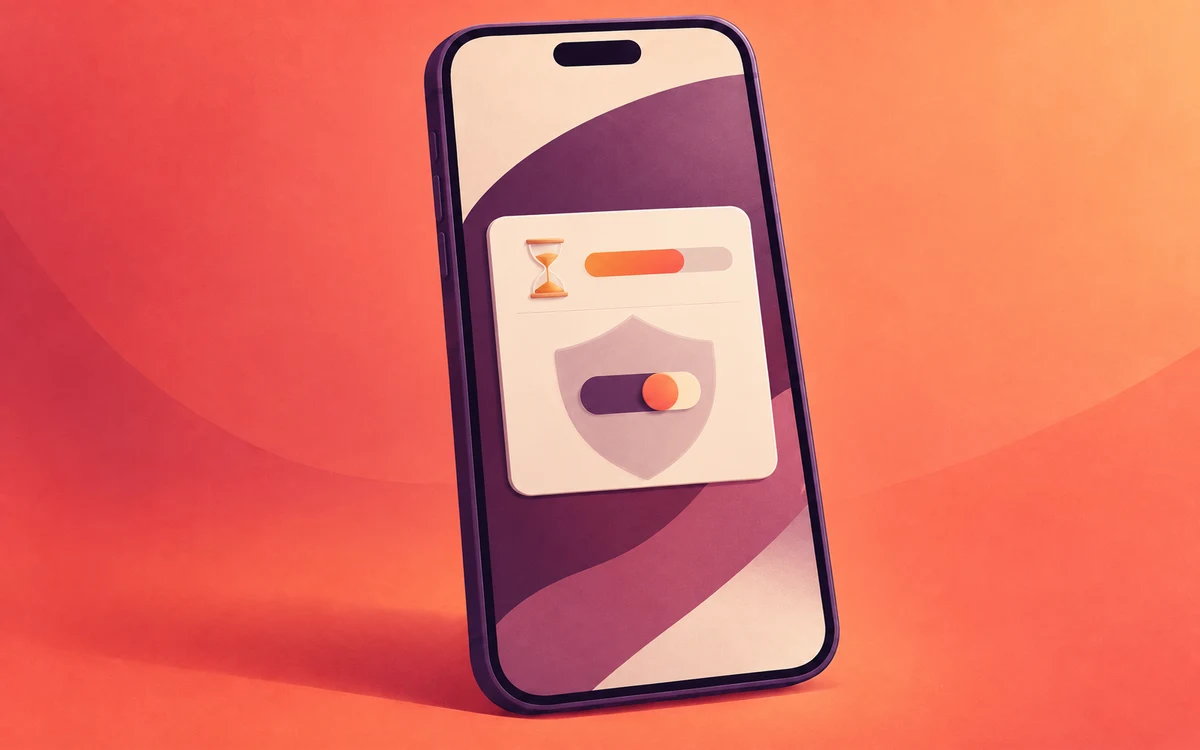
A paper code only adds friction if you also make the in-app route harder. Add a Cooldown or Restart device challenge in Enforcement Protection to make changing or removing the rule harder. This protects the rule; it does not stop someone from using another control you’ve set up for the Switch. See Make Your Screen Time Limits Harder to Turn Off.
Other ways to set it up
- Hand the stop code to someone else: give it to a housemate or partner, and ask them to keep it private so you have to ask before unblocking your apps.
- One code for both: a single control set to Toggle starts and stops blocking, like Brick does. It’s simpler, but you have to walk to it both ways.
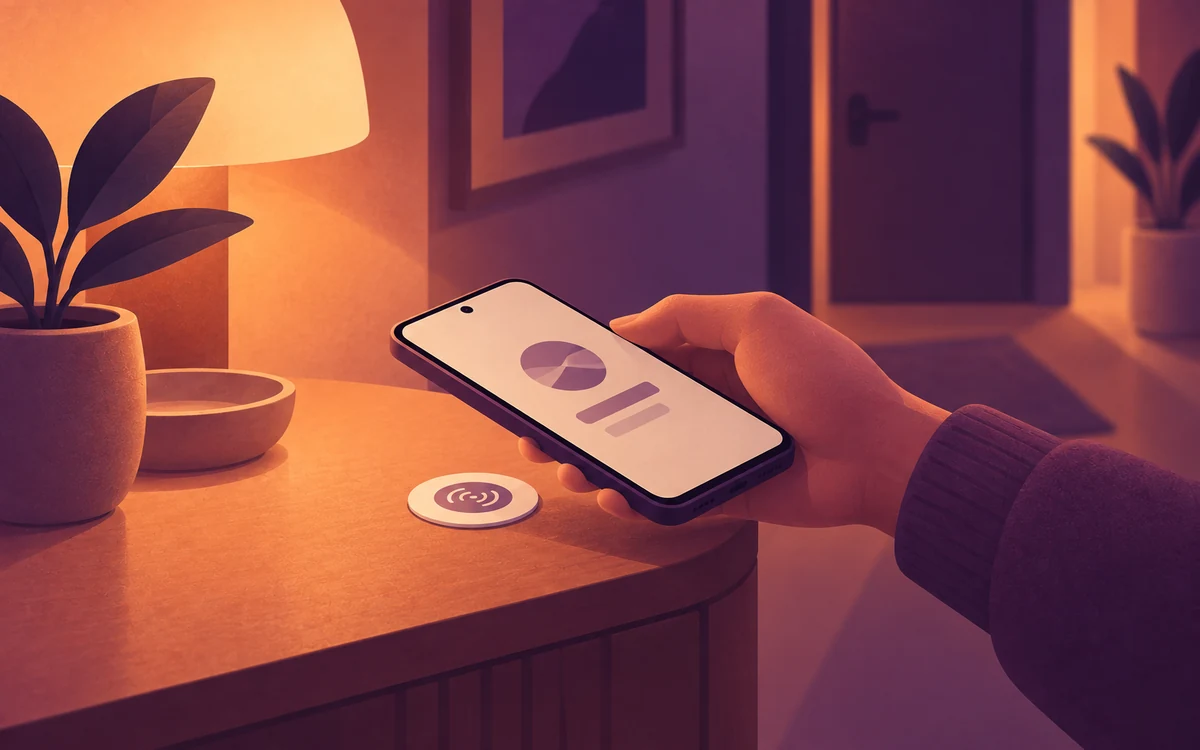
- Tap instead of scan: if your phone has NFC, a sticker is quicker to use. See Turn an NFC Sticker Into a Physical App Blocker.