Use an NFC tag to turn app blocking on and off, and leave the tag somewhere you have to walk to reach it. For why physical blockers work and how the costs compare with devices like Brick, read Physical App Blockers: Do You Need to Buy One?.
You’ll need: an Android phone with NFC and a writable NDEF sticker, such as an NTAG213 or NTAG215. The free plan includes one Switch, with up to 20 controls.
Tap to block, tap to unblock
A Switch is an on/off setting your rules can follow. You flip it by tapping an NFC sticker or scanning a QR code, called controls.
- Create a Switch named “Focus”.
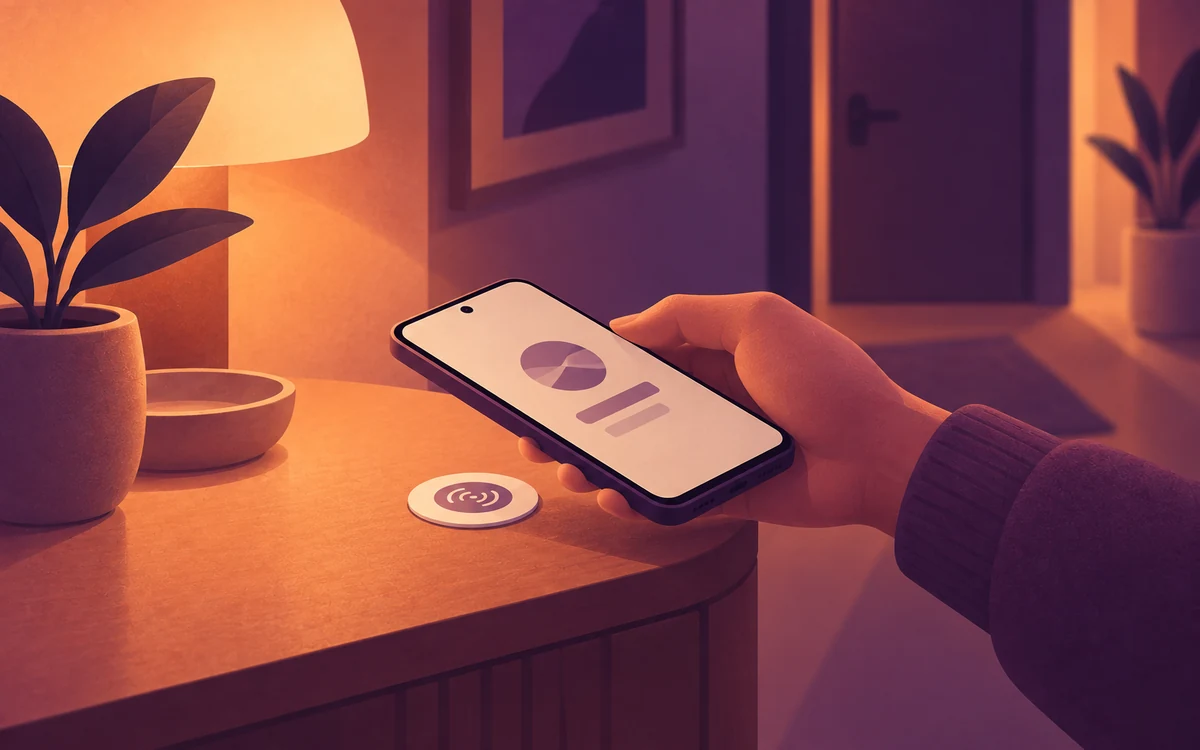
- Under Switch Controls, add an NFC Tag control, choose Write tag, and set it to Toggle. Hold the sticker to the back of your phone until Screentide confirms it’s written.
- Create a rule and add your distracting apps to the Watchlist.
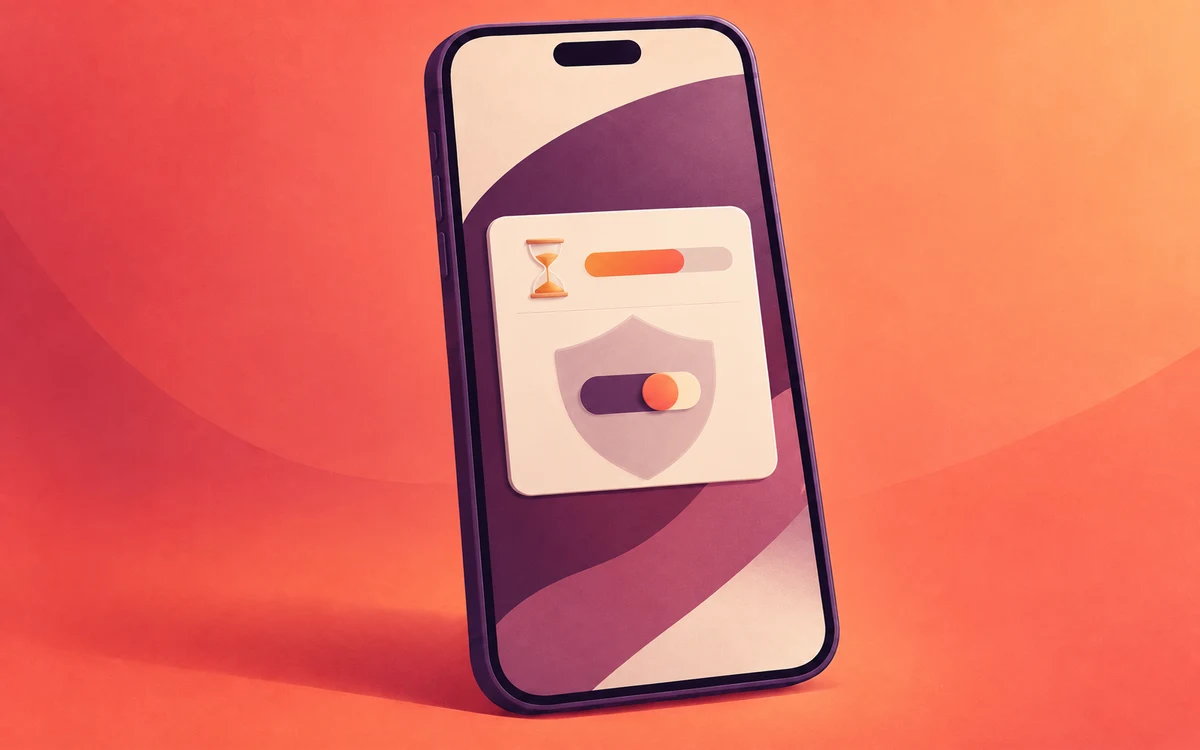
- Set Timing to Always. Under Triggers, choose Switch (NFC/QR) and set it to run while the Switch is on.
- Under Actions, choose Block. Blocks are strict by default, or you can allow a few optional Daily Pardons.
- Stick the tag somewhere you have to get up for, such as a hallway shelf or the kitchen, not your desk.
Tap the tag to start blocking, and tap it again to stop. Once written, the tag can activate its Switch while Screentide is closed.
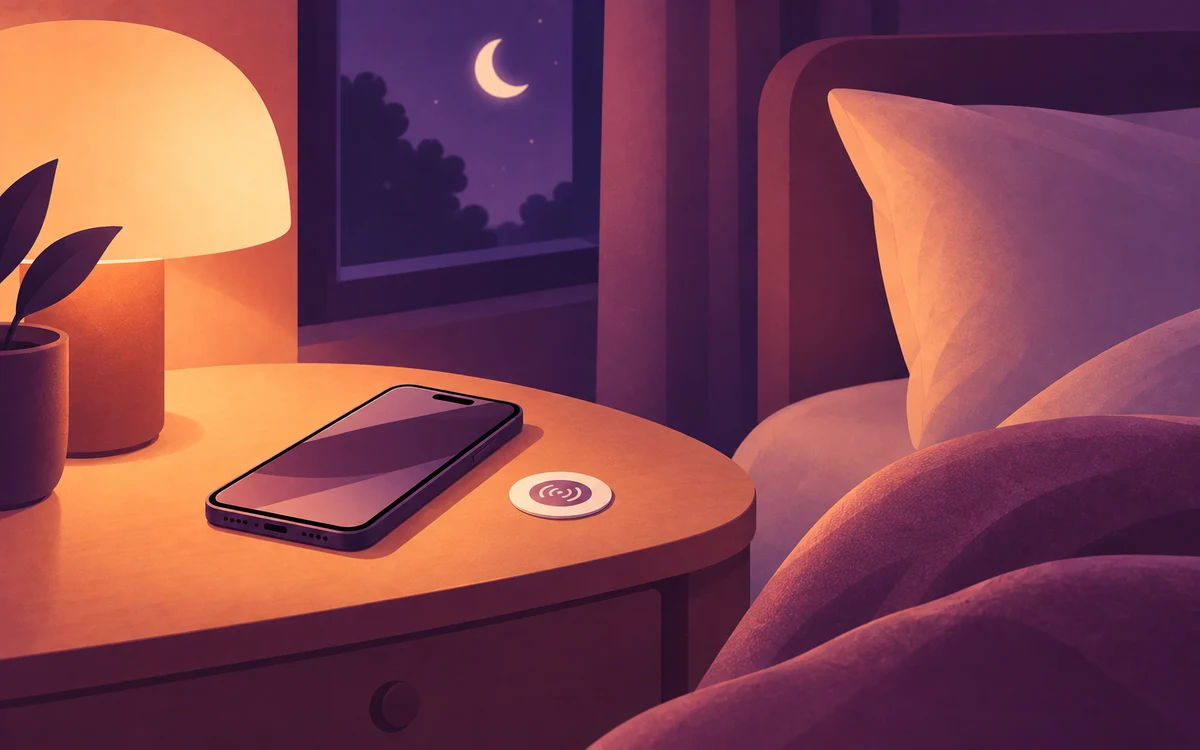
Place On tags where you’re likely to reach for distracting apps, such as your desk, sofa or nightstand. Keep the Off tag somewhere you have to walk to, like the garage or laundry, so turning blocking off takes a little more effort.
Make it harder to undo
The tag only adds friction if you also make the in-app route harder. Add a Cooldown or Restart device challenge in Enforcement Protection to make changing or removing the rule harder. This protects the rule; it does not stop someone from using another control you’ve set up for the Switch. See Make Your Screen Time Limits Harder to Turn Off.
Need an escape hatch, like Brick’s emergency unblocks? Optional Daily Pardons on the Block give you a few timed unlocks a day.
Other ways to set it up
- For bedtime: the NFC Bedtime App Blocker puts an On tag on the nightstand and the Off tag in the kitchen.
- Use a card you already carry: choose Scan existing tag instead of Write tag to use a transport card, work ID badge or hotel key card without changing it. Screentide needs to be open when you scan it. Expired bank cards might work too, but they can also show a different ID each time they’re tapped for security, so test first.
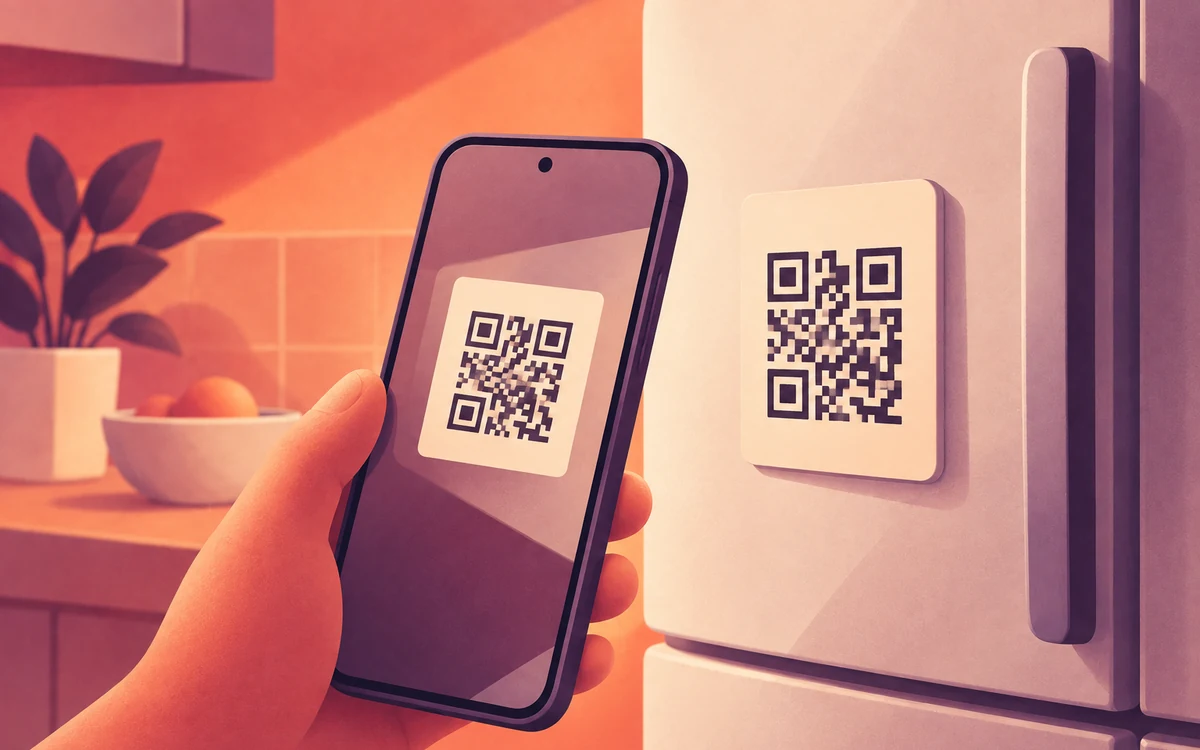
- No NFC: a printed QR code does the same job. See Turn a Printed QR Code Into a Physical App Blocker.