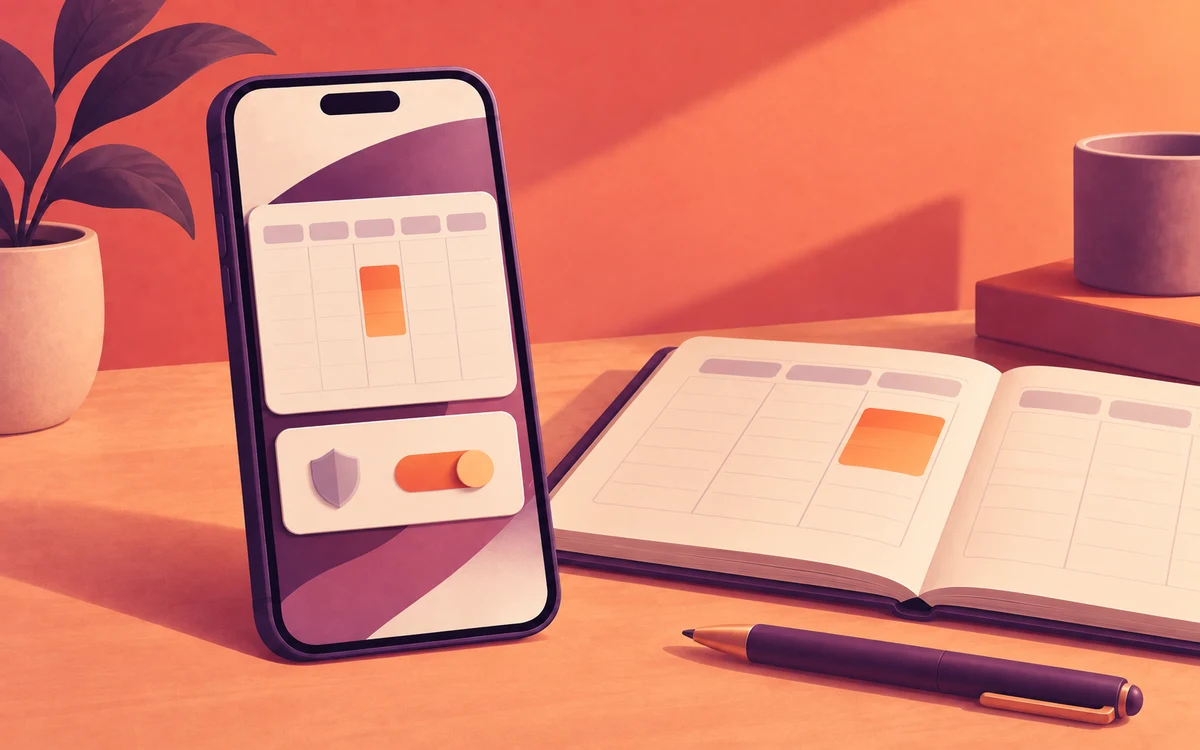
Link your screen time limits to the events in your phone’s calendar. For the if-then planning habits behind it, read How to Protect Focus Time With Your Calendar.
You’ll need: a calendar on your phone (such as Google Calendar) with your focus blocks, lectures or shifts in it. The free plan includes one linked calendar.
Fixed weekly focus time
If your focus time never moves, keep it simple:
- Create a rule and add your distractions to the Watchlist.
- Under Timing, choose Weekly Schedule and add your focus blocks.
- Under Actions, choose Block for a hard stop, or Mute to hold notifications until the block ends.
Follow your real calendar
Screentide’s Calendar Sync timing comes in two modes. Both run your rule only while the event is happening, move with it when it moves, and show your rules side by side with your events in Screentide’s calendar view.
Event Sync: one event you choose
Links a rule to a single event, whether it repeats or happens once.
Great for when:
- One class needs your full attention. Link your Tuesday statistics lecture, and socials are blocked for every session, all semester.
- A one-off matters. Link Thursday’s exam or job interview, and your phone stays quiet for exactly that slot.
- In a rule with your distractions on the Watchlist, go to Timing, choose Calendar Sync, then Event Sync, and select the event.
- Choose your action, such as Block for a hard stop, or Mute to hold notifications until the event ends.
Event Match: every event that fits
Searches your linked calendars and runs the rule during every event that matches your conditions: which calendars, words in the title, description or location (such as “meeting” or “lunch”), and days of the week. New events are picked up automatically, so once it’s set up, you schedule focus time by adding events to your calendar, without opening Screentide.
Great for when:
- Your meetings are everywhere. Match “meeting” or “call”, and notifications are muted in every one, then released when it ends.
- Your shifts change every week. Match “shift” in your work calendar, and distracting apps are blocked whenever your roster says you’re working.
- You want to eat lunch, not scroll through it. Match “lunch” on weekdays, and feeds slow down while messages still come through.
- Your study plan lives in a calendar. Include only your “Uni” calendar, and every lecture, tutorial and exam is covered.
- In a rule with your distractions on the Watchlist, go to Timing, choose Calendar Sync, then Event Match.
- Add conditions: Calendar Match, Text Match and Days of the week.
- Check the Matching events preview to see which upcoming events the rule will cover, then choose your action.
Make it harder to cancel
Add a Cooldown challenge in Enforcement Protection, so you can’t cancel a focus block on a whim.
More linked calendars, and extra actions per rule, come with Gold.