StayFree pairs cross-device tracking with limits, schedules and blocking. If you want more than tracking and standard blocks, apps with opening pauses or gradual feed friction offer another way to act when distraction starts.
Quick comparison
Android only. Tap a cell marked "Some" to see the catch.
- Yes
- Some support
- Paid
- Not verified
- Planned
- No
| Feature |  StayFree StayFree |  Screentide Screentide |  ScreenZen ScreenZen |  AppBlock AppBlock |  one sec one sec |
|---|---|---|---|---|---|
| Android essentials | |||||
| Websites | |||||
| Usage limits | |||||
| Recurring schedules | |||||
| Calendar sync | |||||
| Location triggers | |||||
| NFC / QR triggers | |||||
| Mindful pauses | |||||
| In-app friction | |||||
| Full blocks | |||||
| App usage history | |||||
| Website usage history | |||||
| Usage trends | |||||
| Streaks | |||||
| Also on iOS | |||||
| Price |
View sources
- ScreenZen on Google Play
- ScreenZen website and FAQ
- AppBlock Android help
- AppBlock free and Premium features
- one sec on Google Play
- one sec peer-reviewed six-week study (PNAS)
- What's included in one sec pro
- one sec Android block schedules
- one sec Android Reels and Shorts
- one sec Android website limitations
- StayFree on Google Play
See the full Android feature comparison for more detail on Screentide, ScreenZen, Opal, AppBlock and one sec.
1. Screentide
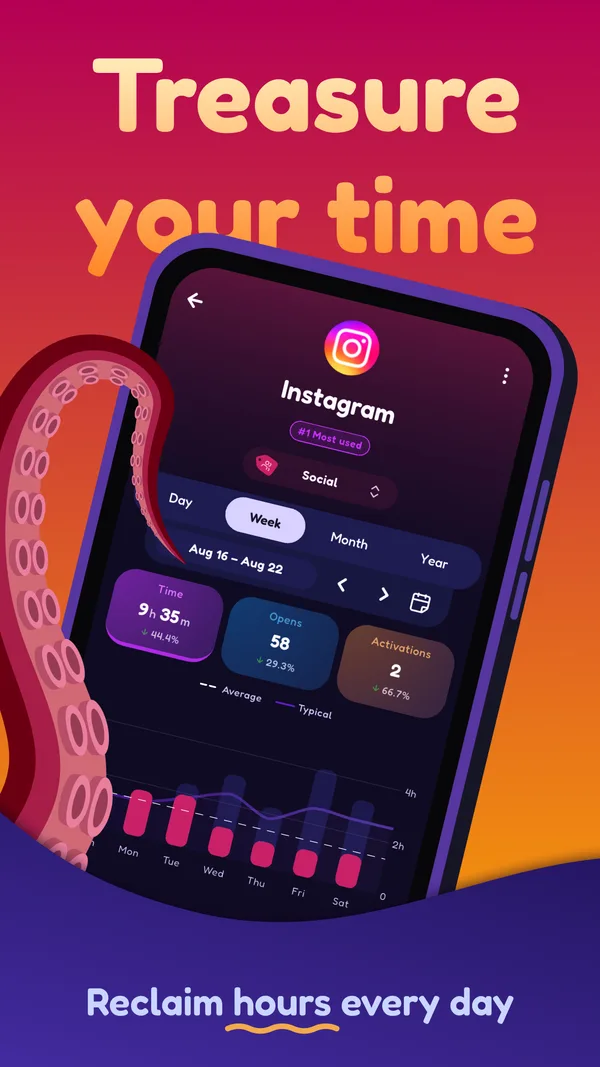
StayFree helps you spot the apps you use most, while Screentide lets you add pauses, slowdowns or blocks to those apps.
- Best for
- People whose days don't run to a fixed schedule, and who want more options than pause or block.
- Price
- Free for 3 rules. Gold is a low-cost subscription or a one-time purchase.
How it works
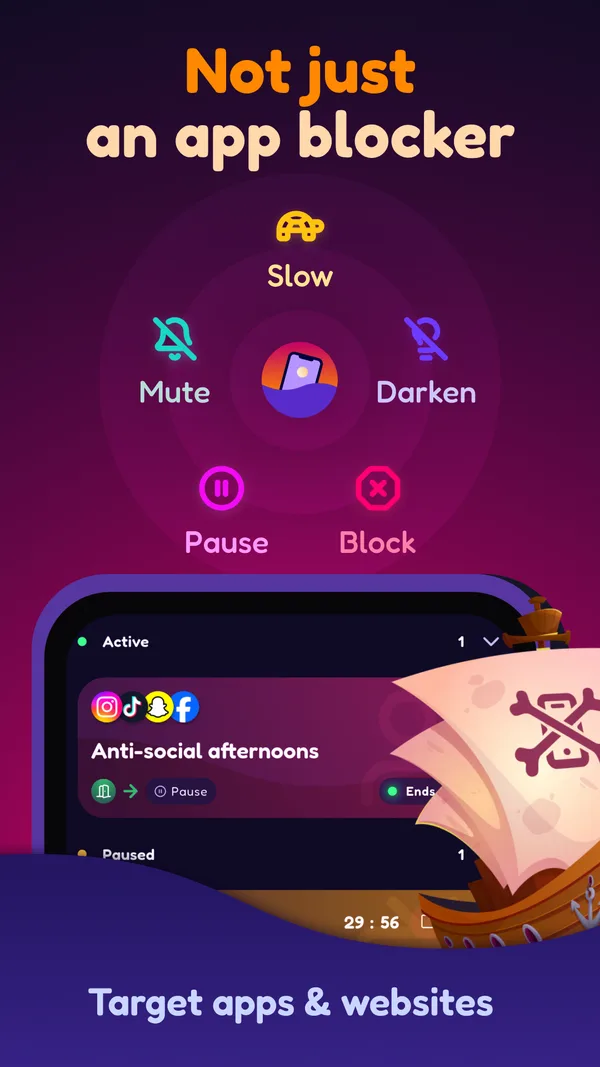
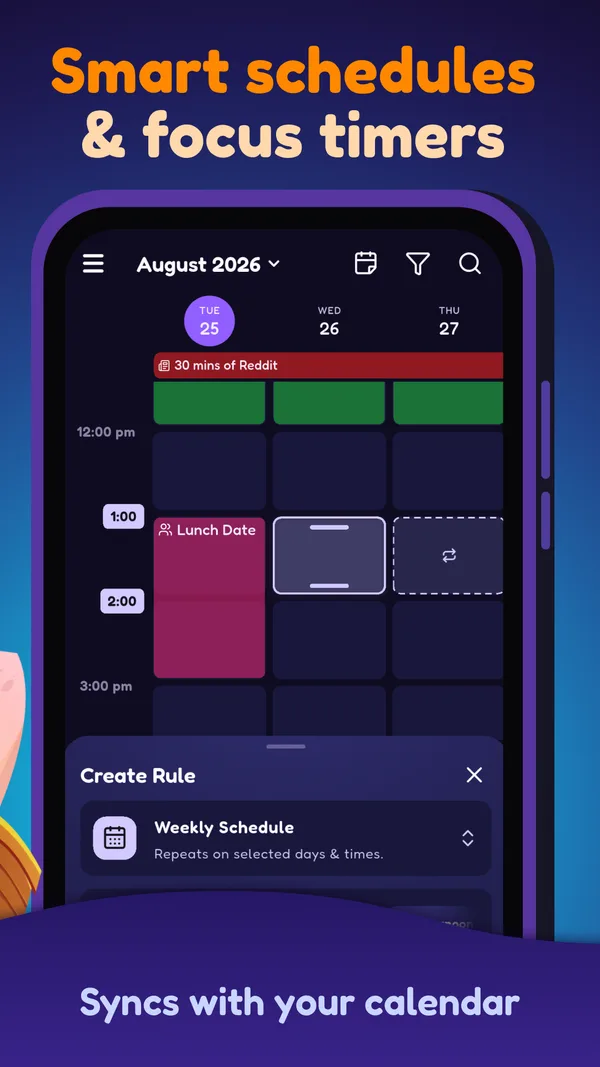
Pick your apps and sites, choose when the rule applies (a schedule, calendar event, usage limit or location), then Slow, Tint, Mute, Pause (with an optional breathing exercise) or Block.
Where it shines
- Screentide offers more than blocks: Slow can reduce video loading in TikTok or Instagram while leaving messaging available.
- Calendar Sync runs your rules during your real calendar events, from one lecture to every event titled "meeting", and moves them when those events move.
- Location, Wi-Fi and NFC triggers are free. A rule can start when you reach the office or tap an NFC tag by your bed.
Where it falls short
- Its stats cover your phone only, with no desktop view.
- No streaks (yet).
- More than 3 rules needs Gold.
Our take
You can keep StayFree for its reports and use Screentide for rules that intervene when you open distracting apps.
Open Screentide in Google PlaySources: Google Play listing, Android feature comparison.
2. ScreenZen
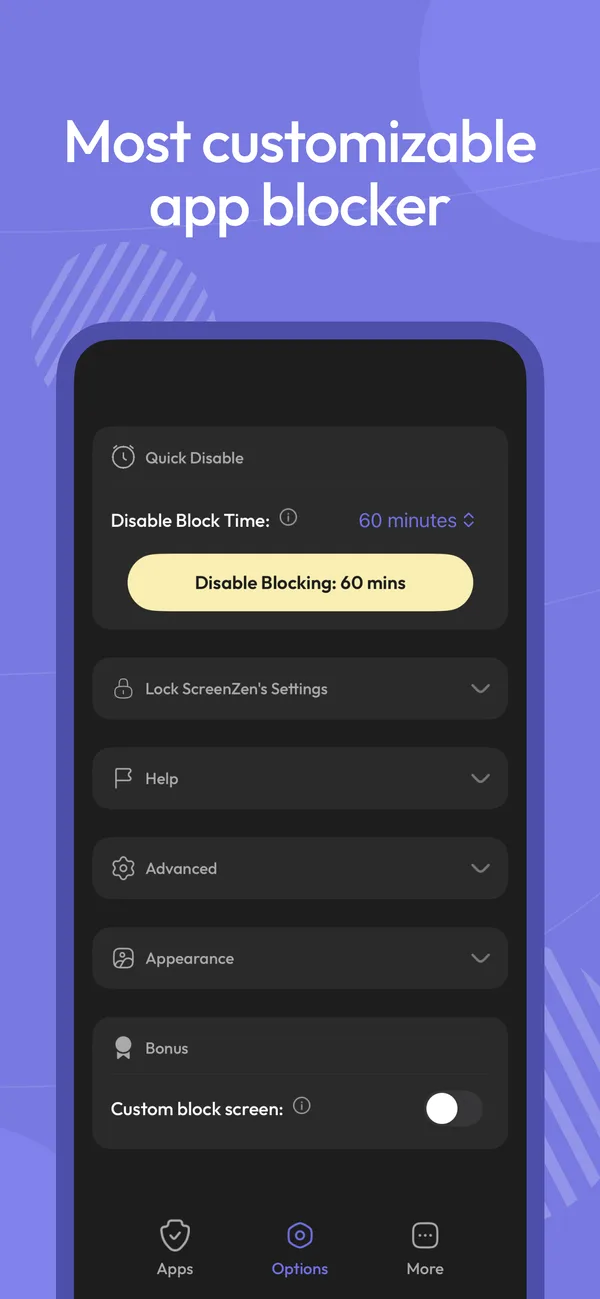
ScreenZen combines app-opening pauses with cross-device support, and its core features are free.
- Best for
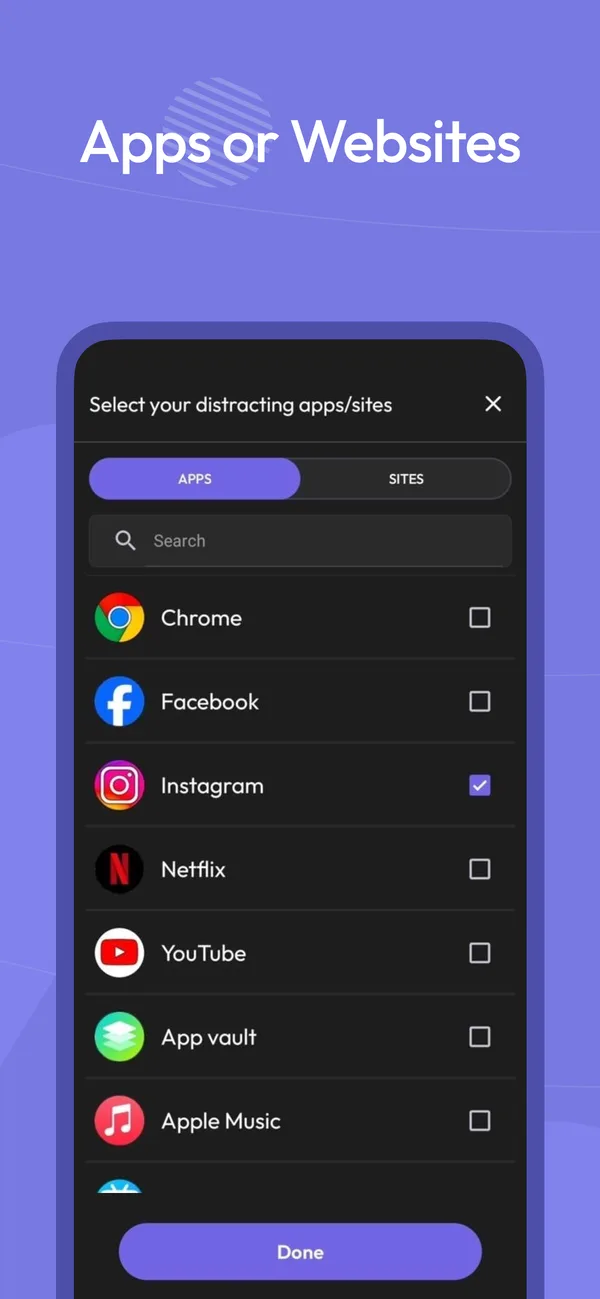
- People who want one free app to rein in everything, on phone and computer.
- Price
- Free to use, with optional donations to support development.
How it works
You wait before an app opens, and the wait grows each time you come back.
Where it shines
- The delay grows with every open, and you can cap how many times a day an app unlocks.
- Prompts like "What are you seeking?" turn each open into a conscious choice.
- Free on Android, iOS, macOS and Windows, with Shorts and Reels blocking and streaks.
Where it falls short
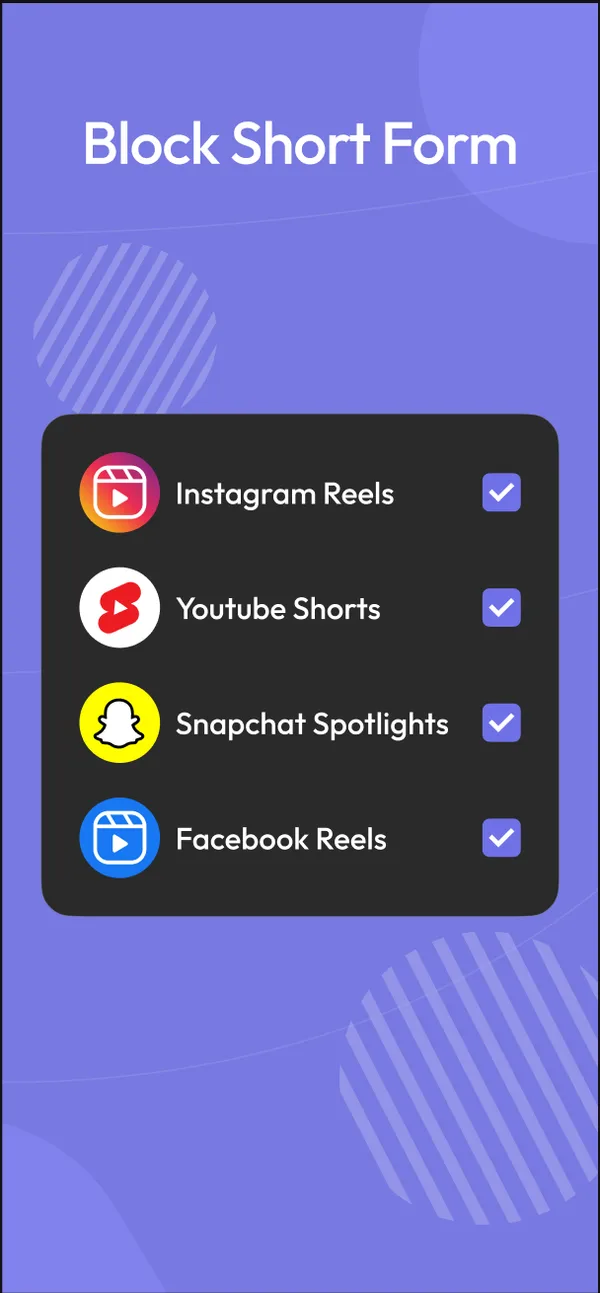
- Its approach centres on mindful pauses, limits and blocks; it doesn't offer feed slowdowns or a colored tint overlay.
- No calendar, location or Wi-Fi triggers.
- Usage stats are basic, and only cover the apps you limit.
Our take
If cross-device access matters, ScreenZen may be the easiest alternative to try.
Open ScreenZen in Google PlaySources: Google Play listing.
3. AppBlock
AppBlock can turn a usage limit into a block when you want a more direct response.
- Best for
- People who know exactly what they want blocked, and when.
- Price
- Free with tight limits. Premium is a subscription or a lifetime purchase.
How it works
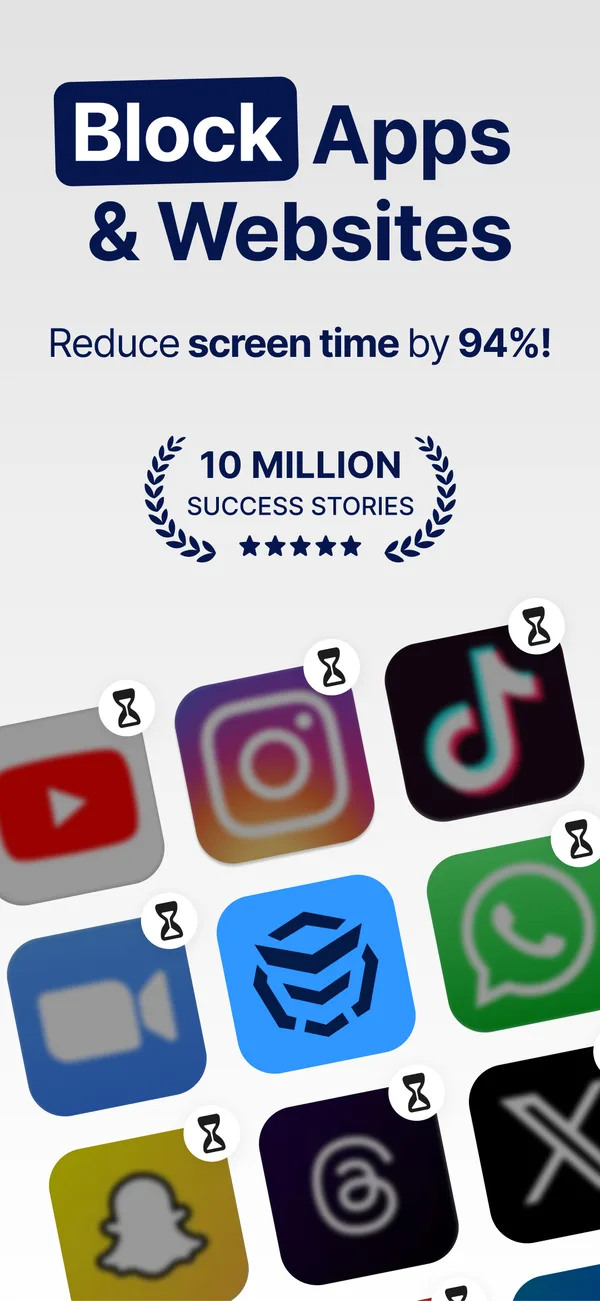
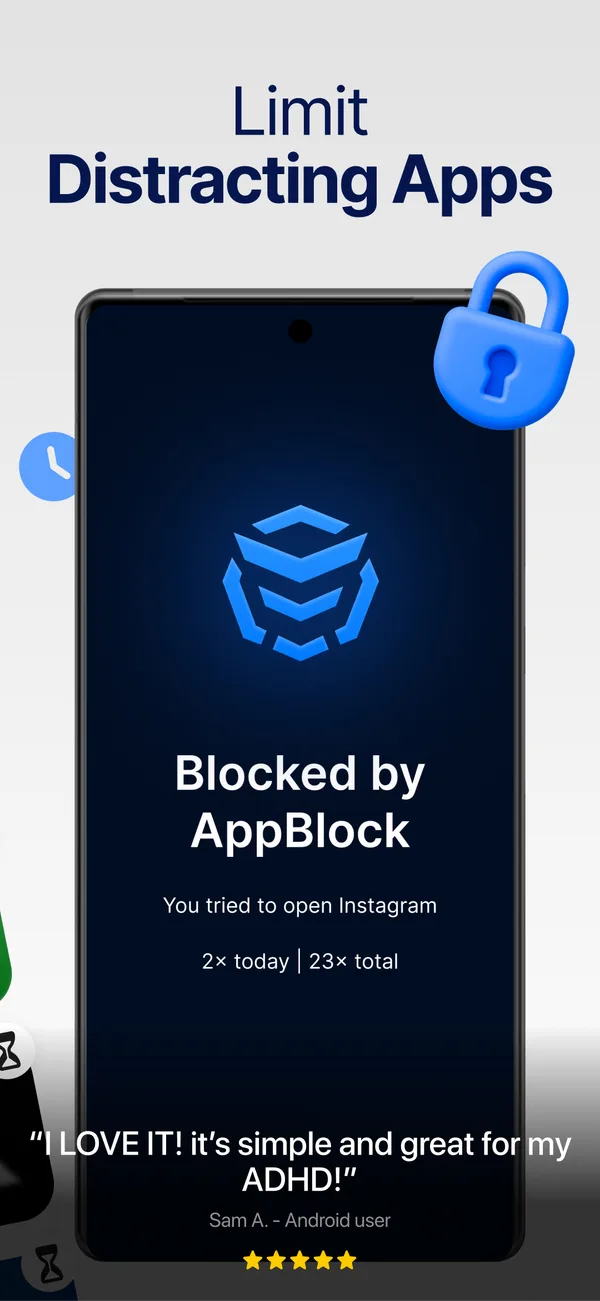
Block instantly, or on a schedule by time, location or Wi-Fi.
Where it shines
- Profiles run by time, day, location or Wi-Fi, so Work mode starts when you arrive.
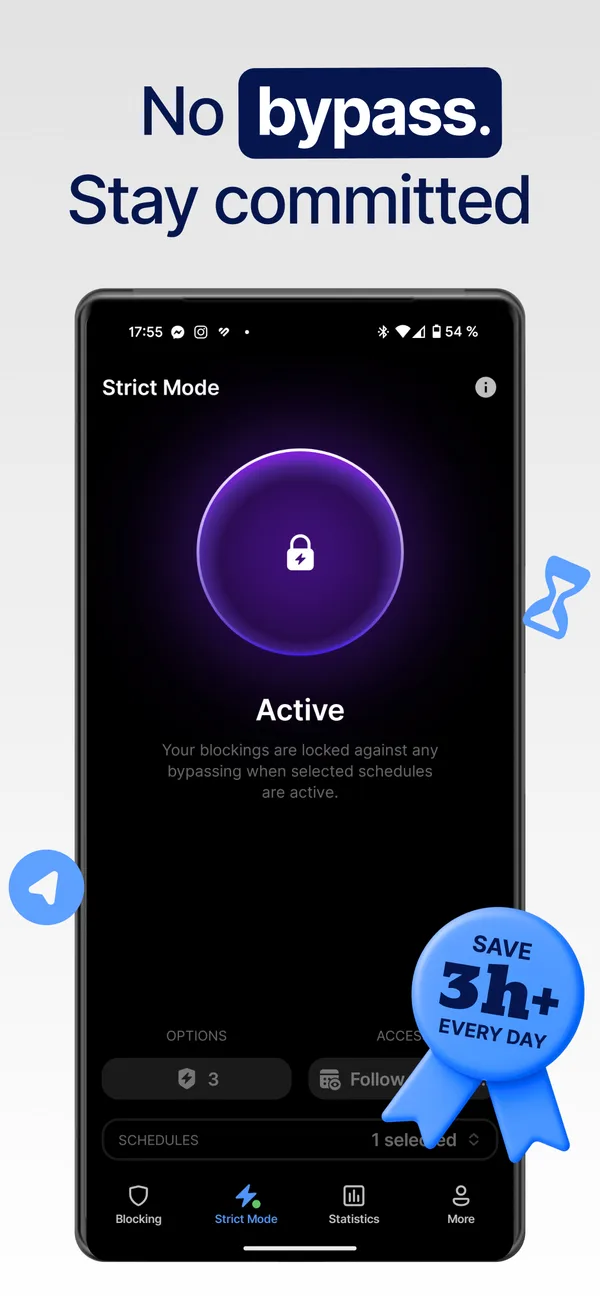
- Strict Mode adds cooldowns and third-party approval, so an impulse can't undo a block.
- Allowlist mode blocks everything except your essentials, for a near-dumbphone.
Where it falls short
- Free schedules cap at 5 apps and 5 sites, and usage limits at 30 minutes a day.
- Its core approach is setting limits and blocking access, rather than slowing a feed or applying a colored tint.
- Free Strict Mode tops out at 24 hours, and some unlock conditions need Premium.
Our take
AppBlock may suit you if you want schedules and firm blocks, though some features require Premium.
Open AppBlock in Google PlaySources: Google Play listing, Android blocking conditions, Free and Premium features, Strict Mode settings.
4. one sec
If your report points to one main distraction, one sec can add a breathing pause before you open it.
- Best for
- People who just want to cut down on one app.
- Price
- Free for one app. Pro is about US$19 a year.
How it works
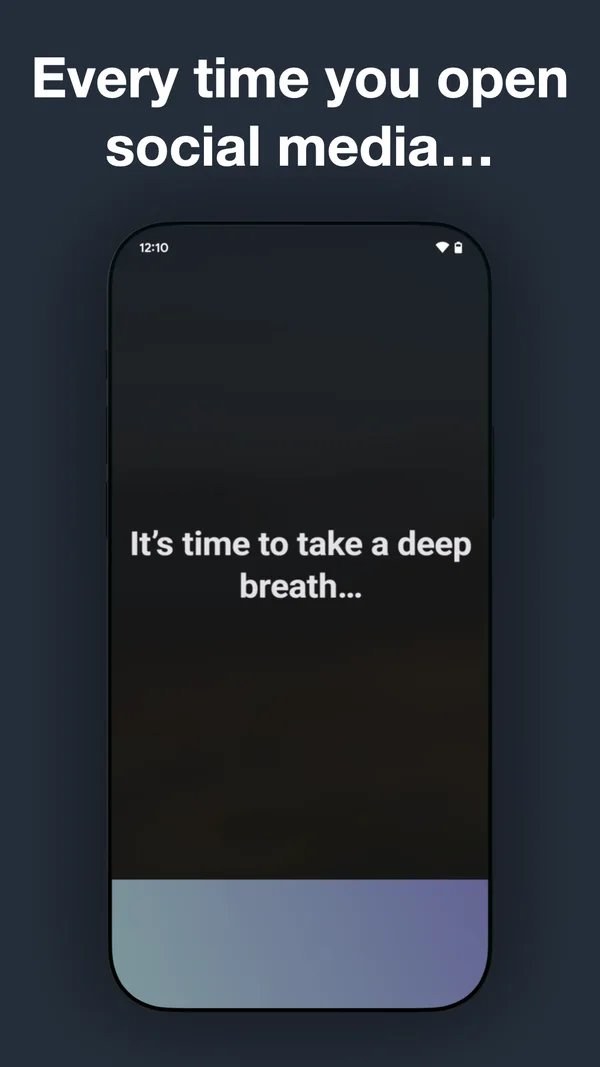
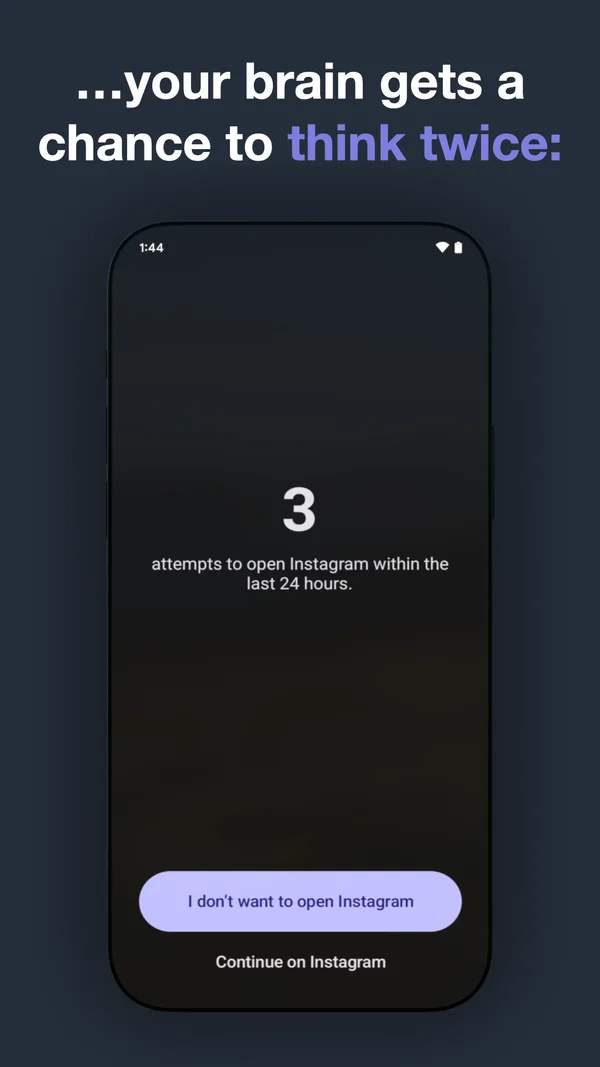
Opening a target app starts a short breathing exercise first.
Where it shines
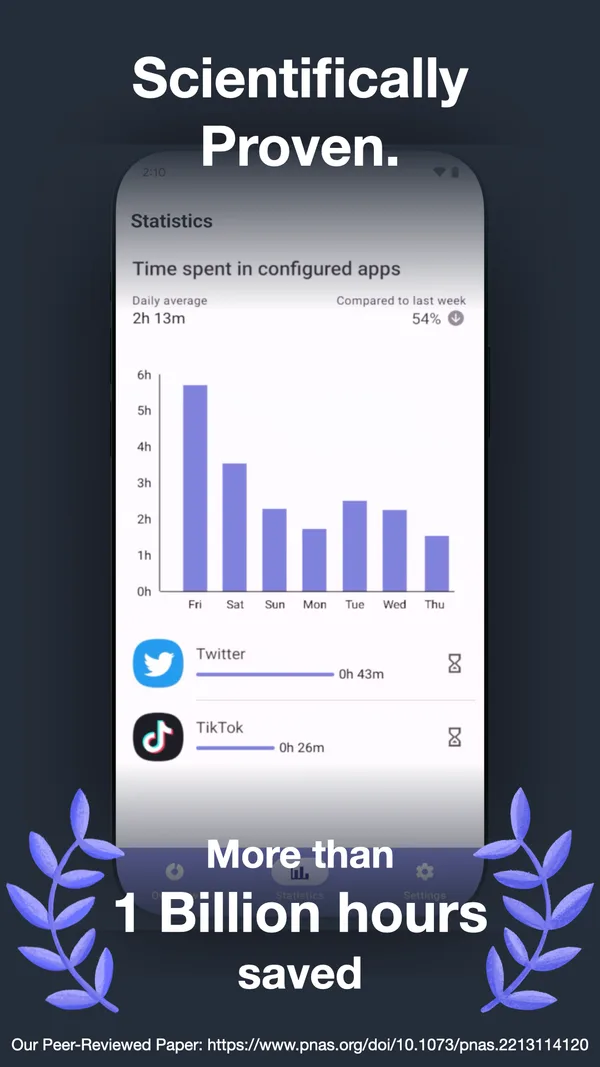
- A six-week study found 57% fewer openings of selected apps by the end among 280 one sec users who completed it. The study tested the full intervention, not breathing alone.
- Intention and emotion check-ins show how each app affects your mood.
- Re-interventions nudge you again when a session runs long.
Where it falls short
- Free covers just one app.
- On Android, pro doesn't include the extra intervention types, website blocking or strict sessions.
- Scheduled blocks on Android are still in beta.
Our take
one sec could work alongside StayFree if you want a pause before opening one problem app.
Open one sec in Google PlaySources: Google Play listing, Peer-reviewed six-week study (PNAS), Android block schedules, Android website intervention.
Why are you looking?
- “I’ve watched my numbers for months, and they haven’t moved.” Data alone rarely changes a habit. You need something that steps in, like Screentide’s graduated friction or ScreenZen’s pause.
- “I swipe the overuse reminders away without reading them.” Put the friction inside the app instead: ScreenZen and one sec pause the open, and Screentide slows the feed or covers it with a colored tint.
- “One app is doing most of the damage.” Put a breathing pause in front of it. one sec and Screentide both do this.
- “I need a hard stop at bedtime.” AppBlock, or Screentide’s strict blocks.
- “I still want good stats on my phone.” Screentide pairs app and website history with its rules.
The bottom line
StayFree is an excellent place to start: its cross-device reports help you spot patterns, and its limits and blocks help you act on them. Try another app if you want a pause at every open or gradual friction while you scroll.